QTrobot Sound and Speech
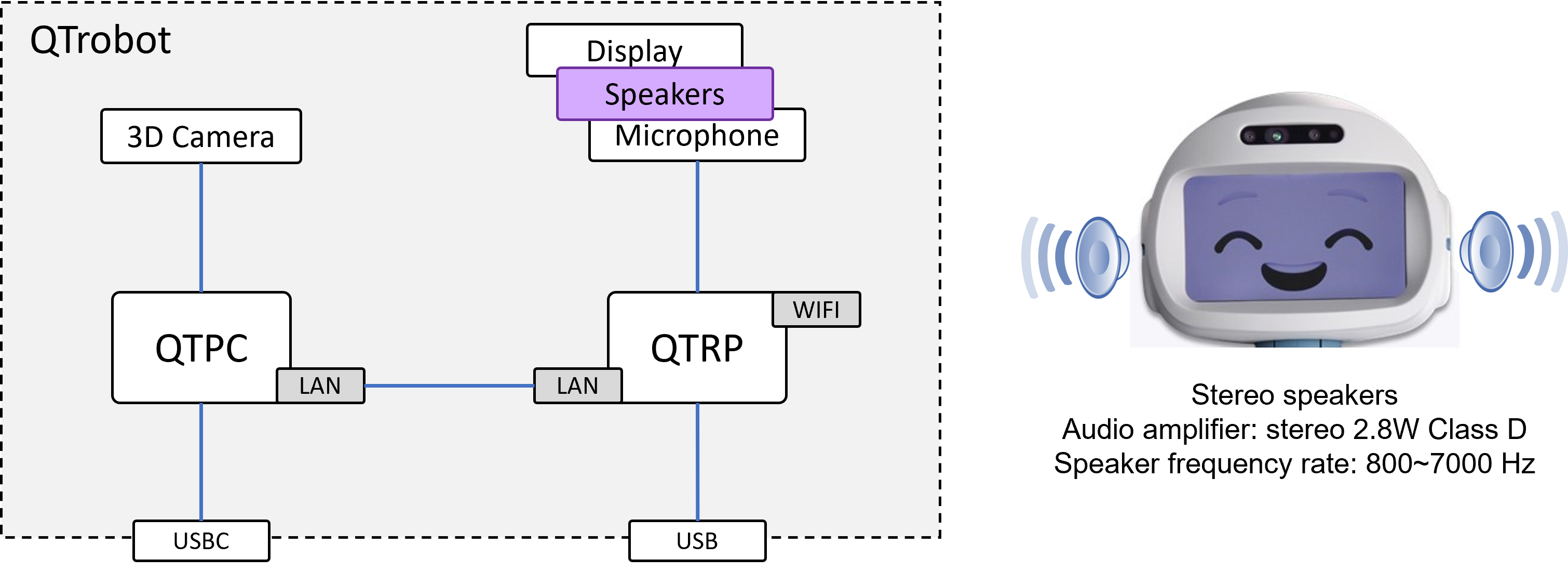
QTrobot has double speakers powered by a 2.8W stereo amplifier. The speakers are connected to the Raspberry Pi (QTRP) audio analog output via the amplifier, exposed as a standard Linux ALSA device that the software stack plays sound through.
Software interface
Sound and speech are handled by three cooperating nodes in qtrobot-service-hub:
tts(configtts.yaml, ZMQ port 50530) — text-to-speech, pluggable across multiple engines.media(configmedia.yaml, ZMQ port 50510) — the audio/video playback engine: file/stream playback on the FG/BG lanes, and the ALSA playback device itself.speaker— the robot's overall hardware volume (mute/unmute, master volume), independent of any individual media lane.
All three are reachable from the Python, TypeScript/Node.js and ROS2 APIs (robot.tts, robot.media, robot.speaker, or their /qtrobot/... ROS2 equivalents) — see the TTS, Audio and Speaker tutorials for full code walkthroughs in each language. This page focuses on the underlying architecture and configuration.
How the FG/BG audio system works
Just like the display's video lanes, the media engine mixes two independent audio lanes, foreground (FG) and background (BG), each with its own volume and its own file/stream input:
A few rules worth knowing:
- TTS speech always plays on the FG stream input. If you want music, sound effects or ambience to keep playing while QTrobot is talking, put it on the BG lane instead.
- Within a lane, file playback always takes priority over the stream: if something is streaming on a lane and a file is requested on that same lane, the file takes over immediately and stream frames are dropped until it finishes.
- After the two lanes are mixed, the result still passes through the
speakermaster volume, so you have three independent volume knobs in total: FG, BG, and master.
See the Audio tutorial for full code (file playback, pause/resume, raw PCM streaming) and more creative ways to combine the two lanes.
TTS engines
robot.tts can speak through several interchangeable engines, configured in tts.yaml:
engines: [acapela]
default_engine: acapela
engines is the list of engines loaded at startup, and default_engine is the one used when a call doesn't explicitly pick one. Each engine has its own config block (tts/acapela.yaml, tts/azure.yaml, tts/custom.yaml), included via tts.yaml. To enable an engine, add it to engines and reference its config:
engines: [acapela, azure]

acapela:
  type: group
  include: acapela.yaml

azure:
  type: group
  include: azure.yaml
Acapela (default)
QTrobot ships with Acapela as the default, fully offline TTS engine. Pre-installed voices live on QTRP under /home/qtrobot/robot/data/acapela/voices; which ones are available depends on the languages/voices purchased with your robot.
voices_path: /home/qtrobot/robot/data/acapela/voices
lang: en-US
voice: Ella
rate: 1.0
pitch: 1.0
If you need a voice that isn't installed, pick one from the Acapela voice repertoire and contact support@luxai.com to have it installed. Acapela doesn't support SSML; it has its own voice tag syntax instead (see the TTS tutorial).
Azure (cloud, SSML)
Microsoft Azure's neural TTS, useful when you need a voice, language or SSML feature Acapela doesn't provide: hundreds of voices across 140+ languages, full SSML control, even custom voice cloning.
region: westeurope
subscription_key: ""
lang: en-US
voice: en-US-AvaMultilingualNeural
rate: 1.0
pitch: 1.0
Get a subscription key and region from the Azure AI Speech documentation, set them in tts/azure.yaml, add azure to engines in tts.yaml, then restart the service hub. See the TTS tutorial's Azure section for the full step-by-step.
Custom (your own TTS service)
For plugging in a third-party or in-house TTS HTTP service:
url: ""
api_key: ""
audio_samplerate: 22050
audio_channels: 1
lang: lb_LU
voice: lb_LU-femaleLOD-medium
rate: 1.0
pitch: 1.0
url/api_key point the engine at your service, while audio_samplerate/audio_channels tell QTrobot how to decode the raw PCM audio it returns.
Common engine parameters
lang, voice, rate and pitch exist on every engine above, and can also be overridden per call rather than just in config:
- Python
- TypeScript/Node.js
- ROS2
robot.tts.say_text("This is spoken slower at a higher pitch.", engine="acapela", rate=0.85, pitch=1.2)
await robot.tts.sayText({ text: 'This is spoken slower at a higher pitch.', engine: 'acapela', rate: 0.85, pitch: 1.2 })
ros2 service call /qtrobot/tts/engine/say/text qtrobot_interfaces/srv/TtsEngineSayText \
    "{text: 'This is spoken slower at a higher pitch.', engine: 'acapela', rate: 0.85, pitch: 1.2}"
See the TTS API reference for the full list of calls (listing engines/voices/languages, reading/writing engine config, SSML support, cancelling speech).
Volume control
Three independent levels exist: the FG/BG media lane volumes (covered above), and the overall speaker master volume:
- Python
- TypeScript/Node.js
- ROS2
robot.speaker.set_volume(0.8)
vol = robot.speaker.get_volume()

robot.speaker.mute()
robot.speaker.unmute()
await robot.speaker.setVolume({ value: 0.8 })
const vol = await robot.speaker.getVolume()

await robot.speaker.mute()
await robot.speaker.unmute()
ros2 service call /qtrobot/speaker/volume/set qtrobot_interfaces/srv/SpeakerVolumeSet "{value: 0.8}"
ros2 service call /qtrobot/speaker/volume/get qtrobot_interfaces/srv/SpeakerVolumeGet "{}"

ros2 service call /qtrobot/speaker/volume/mute qtrobot_interfaces/srv/SpeakerVolumeMute "{}"
ros2 service call /qtrobot/speaker/volume/unmute qtrobot_interfaces/srv/SpeakerVolumeUnmute "{}"
Because of how QTRP's audio system handles volume, perceived loudness doesn't scale evenly with the volume value — for example, going from 0.5 to 0.7 may sound only slightly louder, while going from 0.8 to 0.9 can be a much bigger jump. Worth keeping in mind when picking a default volume or building a volume slider.
Muting doesn't change the stored volume; get_volume() still returns the same value, and unmuting restores audio at that level. As a low-level fallback, you can also adjust volume directly with standard Linux tools on QTRP (see control_device below for which ALSA mixer control this maps to):
ssh qtrp
alsamixer
# press F6, select the sound card, use the arrow keys
Playing audio files
robot.media plays standard wav/mp3 files (or online URLs) on the FG or BG lane:
- Python
- TypeScript/Node.js
- ROS2
robot.media.play_fg_audio_file("/home/qtrobot/robot/data/audios/QT/5LittleBunnies.wav")
await robot.media.playFgAudioFile({ uri: '/home/qtrobot/robot/data/audios/QT/5LittleBunnies.wav' })
ros2 service call /qtrobot/media/audio/fg/file/play qtrobot_interfaces/srv/MediaAudioFgFilePlay \
    "{uri: '/home/qtrobot/robot/data/audios/QT/5LittleBunnies.wav'}"
Playing your own audio
Copy your file to the default audio folder on QTRP, /home/qtrobot/robot/data/audios, then play it the same way as the built-in examples above, using its path.
See the Audio tutorial for pause/resume, playing FG and BG simultaneously, online files/radio streams, and raw PCM streaming.
Using an external speaker
QTrobot supports USB speakers and USB sound card interfaces, connected to the USB port on QTRP at the back of the robot.
1. List audio devices
ssh qtrp
aplay -l

# Example output (truncated):
**** List of PLAYBACK Hardware Devices ****
card 0: b1 [bcm2835 HDMI 1], device 0: bcm2835 HDMI 1 [bcm2835 HDMI 1]
card 1: Headphones [bcm2835 Headphones], device 0: bcm2835 Headphones [bcm2835 Headphones]
card 2: ArrayUAC10 [ReSpeaker 4 Mic Array (UAC1.0)], device 0: USB Audio [USB Audio]
card 3: UACDemoV10 [UACDemoV1.0], device 0: USB Audio [USB Audio]
In this example, the external USB speaker is UACDemoV10, card 3 device 0, so its ALSA device string is hw:3,0.
2. Point the media engine at it
Edit media.yaml and set playback_device to the device string from step 1:
playback_device: "plughw:3,0"
control_device is the matching ALSA mixer control (used by robot.speaker's volume calls and by alsamixer), as a [card, control_name] pair:
control_device: [hw:3, PCM]
3. Restart the service hub
sudo systemctl restart qtrobot-service-hub.service
The built-in media.yaml defaults (playback_device: plughw:Headphones,0, control_device: [hw:Headphones, PCM]) point at QTrobot's own onboard amplifier — switching playback_device/control_device redirects all audio (TTS, media files, streams) to the external device, not just one lane.