QTrobot Emotion and Face
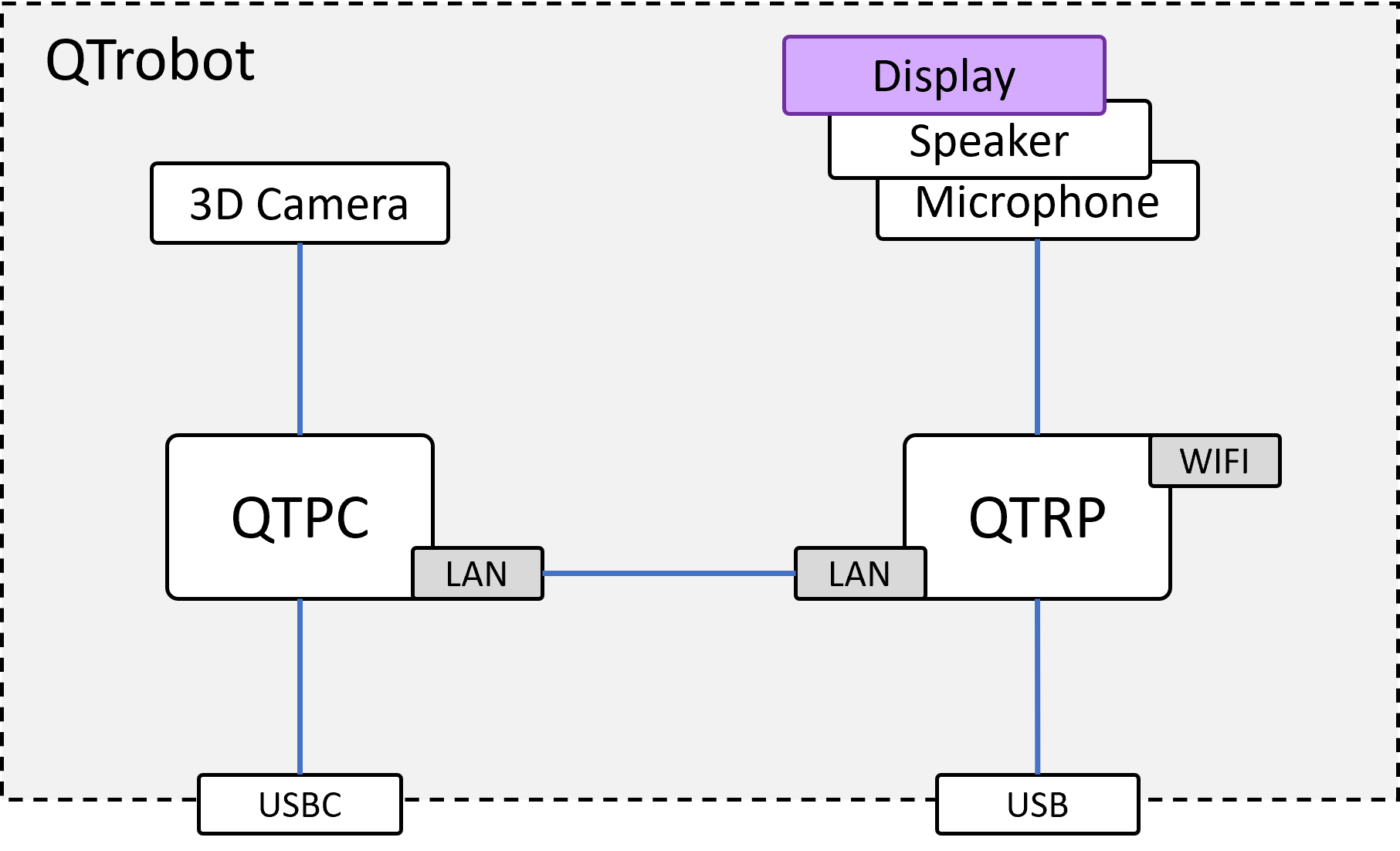
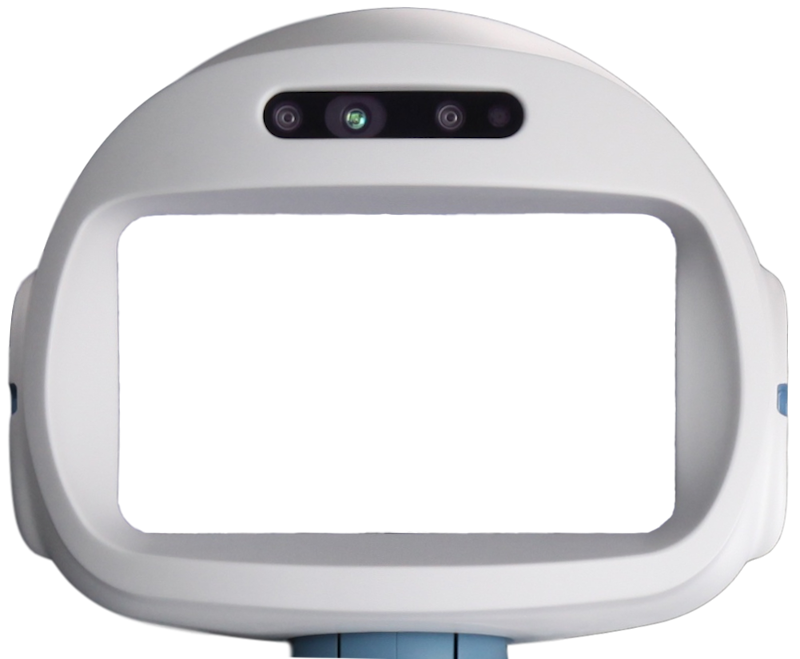
QTrobot has an integrated 800x480 standard display in the head which is mainly used for showing facial emotions. However, the use of the display is not limited and developers can use it as standard screen for displaying any visual contents and video streaming. The display is connected to QTRP (Raspberry Pi board in the head) via HDMI interface as shown in the image below. QTrobot's display is not touchscreen.
| Specifications | |
|---|---|
| Screen Size | 8.0 (Diagonal) inch |
| Display Format | 800RGB(H)×480(V) dot |
| Active Area | 176.64(H)×99.36(V) mm |
| Pixel Size | 0.0736(H)×0.2070(V) mm |
Software interface
The display is driven by two nodes in qtrobot-service-hub, working together:
face(configface.yaml, ZMQ port 50520) renders emotions, eye gaze, blinking and TTS lip-sync.media(configmedia.yaml, ZMQ port 50510) is the underlying video engine, exposing the foreground (FG) / background (BG) video lanes the face is drawn on, plus general-purpose video playback.
Both are reachable from the Python, TypeScript/Node.js and ROS2 APIs (robot.face, robot.media or their /qtrobot/face/..., /qtrobot/media/... ROS2 equivalents) — see the Face and Emotion and Video tutorials for full walkthroughs. The facial expressions ("emotions") are simply video files, located and categorized on QTRP under /home/qtrobot/robot/data/emotions.
Showing default emotions
To display one of QTrobot's default emotions:
- Python
- TypeScript/Node.js
- ROS2
robot.face.show_emotion("QT/happy")
await robot.face.showEmotion({ emotion: 'QT/happy' })
ros2 service call /qtrobot/face/emotion/show qtrobot_interfaces/srv/FaceEmotionShow \
    "{emotion: 'QT/happy'}"
You should not specify the emotion's file extension (.avi).
How the video FG/BG system works
Emotions and the idle face are not special cases: they're regular video content played on the background (BG) lane of the media engine. The display has exactly two video lanes:
- BG is the opaque base layer. This is what
show_emotion()plays on, and it's also what the idle face (blinking, breathing) and TTS lip-sync are rendered to when nothing else is playing. - FG sits on top of BG and is alpha-blended over it (
set_fg_video_alpha()). There's no separate BG alpha, since BG is always the fully-opaque bottom layer.
This means the FG lane is yours: you can overlay your own video, an image-turned-video, or a live streamed signal on top of QTrobot's face without interfering with emotions, blinking, or speech animation underneath.
A practical example: play an emotion on BG while overlaying your own graphic on FG at half transparency:
robot.media.set_fg_video_alpha(0.5)
robot.media.play_fg_video_file("/data/video/notification.mp4")
robot.face.show_emotion("QT/happy")
See the Video tutorial for file playback, pause/resume, and raw frame streaming on either lane.
Idle face and lip-sync
When nothing else is playing, the BG lane shows QTrobot's idle face: static eye/mouth images, blinked at a random interval, rather than a looping video file. The same assets are used to lip-sync during TTS speech (a different mouth image per viseme/phoneme group). This is configured in face.yaml:
idle_img_path: /opt/luxai/qtrobot_service_hub/assets/idle
viseme_img_path: /opt/luxai/qtrobot_service_hub/assets/viseme
right_eye_pos: [140, 168]
left_eye_pos: [532, 168]
mouth_pos: [336, 320]
blink_interval_range: [5, 8]
right_eye_pos / left_eye_pos / mouth_pos are the pixel anchors these images are drawn at on the 800x480 canvas; they're also the reference point robot.face.look()'s [dx, dy] offsets are relative to. blink_interval_range is the random [min, max] seconds between idle blinks.
Eye gaze
Move the eyes independently of any emotion or idle animation:
robot.face.look(l_eye=[30, 0], r_eye=[30, 0])             # look right
robot.face.look(l_eye=[0, 0], r_eye=[0, 0], duration=2.0)  # center, auto-reset after 2s
See look in the API reference for the full parameter list.
Taking over the display
If you want to run your own image/video player on QTrobot's display instead of the built-in emotion/idle rendering, disable the face node in face.yaml:
enabled: false
With face disabled, the display is free, and robot.media's FG/BG video lanes remain available for you to drive directly.
Creating and playing your own emotion
QTrobot's emotion interface can play different video files including
- AVI (H.264, X.264 or H.264)
- MP4 (v2)
- MOV (Apple QuickTime movie)
Despite which format your video files has, it should be always named with .avi extension.
Playing a video file
To display custom video, simply copy it to the default emotions data folder (/home/qtrobot/robot/data/emotions) on QTRP and play it like any other emotion:
- Video name: "myvideo.avi"
- Video path: "/home/qtrobot/robot/data/emotions/myvideo.avi"
robot.face.show_emotion("myvideo")
The video stops automatically when it finishes, or you can interrupt it early using the async handle's cancel(), shown in the Face and Emotion tutorial.
To have a better quality and have more optimized video files for QTrobot, it's better you create/resize the video to 800x480 pixels with lower framerate (less than 18fps).
Displaying an image file (JPG, PNG)
The emotion interface plays video files; a still image has no timeframe and would disappear immediately. The best way to show an image for a desired period is to convert it to a simple AVI file with the desired delay, using ffmpeg:
ffmpeg -loop 1 -framerate 18 -i image.jpg -c:v libx264 -t 10 -pix_fmt yuv420p myimage.avi
the above command creates myvideo.avi video file which shows the image.jpg for 10 second.
Displaying a GIF file
Same as the above procedure, we need to convert the GIF file into an video file. We can do that using ffmpeg tools as shown bellow:
ffmpeg -r 10 -i image.gif -movflags faststart -pix_fmt yuv420p -vf "scale=trunc(iw/2)*2:trunc(ih/2)*2" mygif.avi
You can change the framerate parameter -r to make the gif animation slower (e.g. -r 4) or faster (e.g. -r 18).
You can learn more about the ffmpeg powerful tool for creating more interesting contents such as slideshow here: ffmpeg wiki