QTrobot Blocks reference
Basic blocks
Basic blocks are those that you can find in the Blocks tab in QTrobot studio. These custom blocks are meant to program QTrobot basic functionalities such as speech, emotion, and gestures. There are also control blocks to manage the flow of your program.
Start block

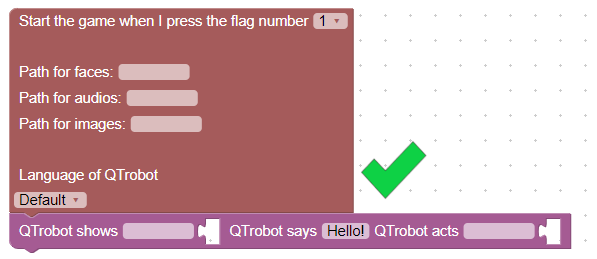
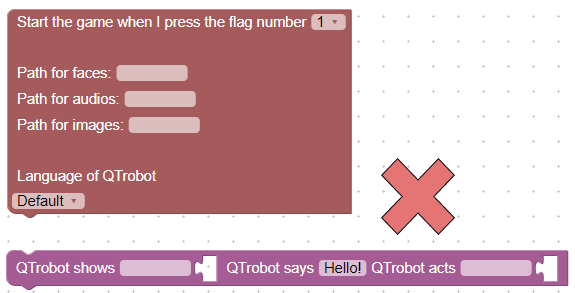
This is a start block. Every program that you create MUST start with Start Block and everything else should be connected to it is shown in the left picture bellow. If you don't connect block to the start block (as show in right picture) the game will not work. To use your custom audio or image you need to provide correct path to the folder you want to use in the Start Block. For example if you have your images saved in folder <your-username>/kids/toys/ you would need to enter into images path /kids/toys/.
- path to Faces folder (optional)
- path to Audios folder (optional)
- path to Images folder (optional)
- default Language
Show, says and act block

- an emotion to show
- a text message to speak out by the robot
- a gesture to be played by the robot
To show a face (for example happy face), you can simply drag and drop the face into this block as shown here:

You can use this block to do multiple action at the same time. For example, to play a gesture and talk, you can write your text message and drag and drop a gesture into this block as shown here:

- Special characters: You can use some special characters such as exclamation mark in your text messages to change the intonation of the word. For example, if you write
Hello!(with exclamation mark) QTrobot pronounces it with different intonation thanHello. Take a look at Exclamations section of your language of choice for more tips and tricks. - vocal smileys: You can use some keywords to create some special sounds by QTrobot. There are called vocal smileys. For example
#LAUGH01#makes QTrobot to laugh. Pay attention to the#which surrounds the word. Take a look at Sounds section of your language of choice for more tips and tricks.
Show, plays and act block

This block can shows an emotion on QTrobot face, plays audio file and at the same time play a gesture by the robot. It has three inputs:
- an emotion to show
- a audio file to play
- a gesture to be played by the robot
To show a face (for example happy face), you can simply drag and drop the face into this block as shown here:

Repeat block

This block repeats the execution of the attached blocks.
For example to repeat 2 times clapping gesture it would look like this:

Random block

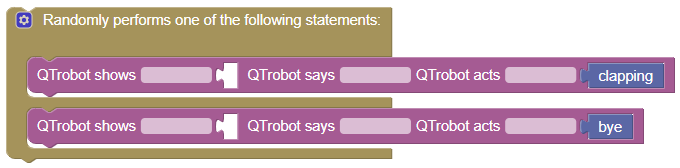
This block will randomly preform one of the attached blocks.
With pressing on settings icon we can select how many choices we want to use.

In this example QTrobot will execute bye or clapping gesture:
Pause block

This block will pause preforming the program until you press continue.
There is another block, which pauses for selected time in seconds:

Select block

With this block we can control which sets of blocks will be preformed. With this example, when we run this block we will get two options to select from:
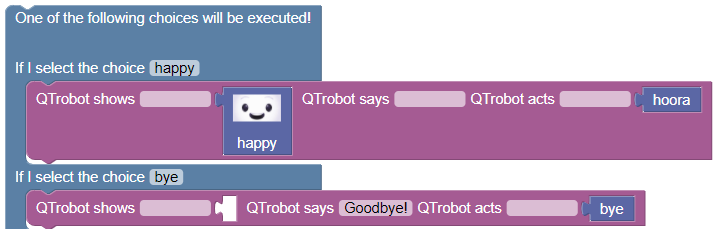
If we choose happy, QTrobot will show happy face and preform hoora gesture, but if we choose bye, QTrobot will say Goodbye! and preform bye gesture.
Kid tablet blocks
Kid tablet blocks are those that you can find in the Kid Tablet tab in QTrobot studio. These custom blocks are meant for showing images on the Learner tablet.
Show clickable images block

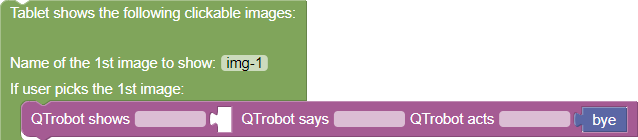
This block will show clickable images on the Learner tablet. When you want to show your image e.g. img-1.PNG on Learner tablet, you will need to write the name of the image without file extension (e.g. .PNG or .jpg).
For example when one of the images is clicked we can preform some gestures:
Show unclickable images block

This block will show unclickable images on the Learner tablet.
Show reference image block

This block will show one reference unclickable image on top and clickable images to choose below on the Learner tablet.