Games with images and the Learner App
This tutorial shows how to show images to the learner during a game and introduces the Learner App — the browser-based view that the learner sees during a session.
Prerequisites
Your first game — you know how to create a game, add blocks, and run it.
The Learner App
When your game uses Kid Tablet blocks, the images and interactive elements they display appear on the Learner App. The Learner App is a separate browser view that you open on any device the learner will use: a tablet, a phone, a second monitor, or another laptop.
Opening the Learner App
From the Studio: click Learner App in the Studio's top navigation bar. The Learner App opens in a new browser tab on the same device.
From another device: navigate to the Studio URL from the learner's device (the same IP address you used to reach Studio), then on the login page select Learner App from the "Login To" dropdown and enter only the password:
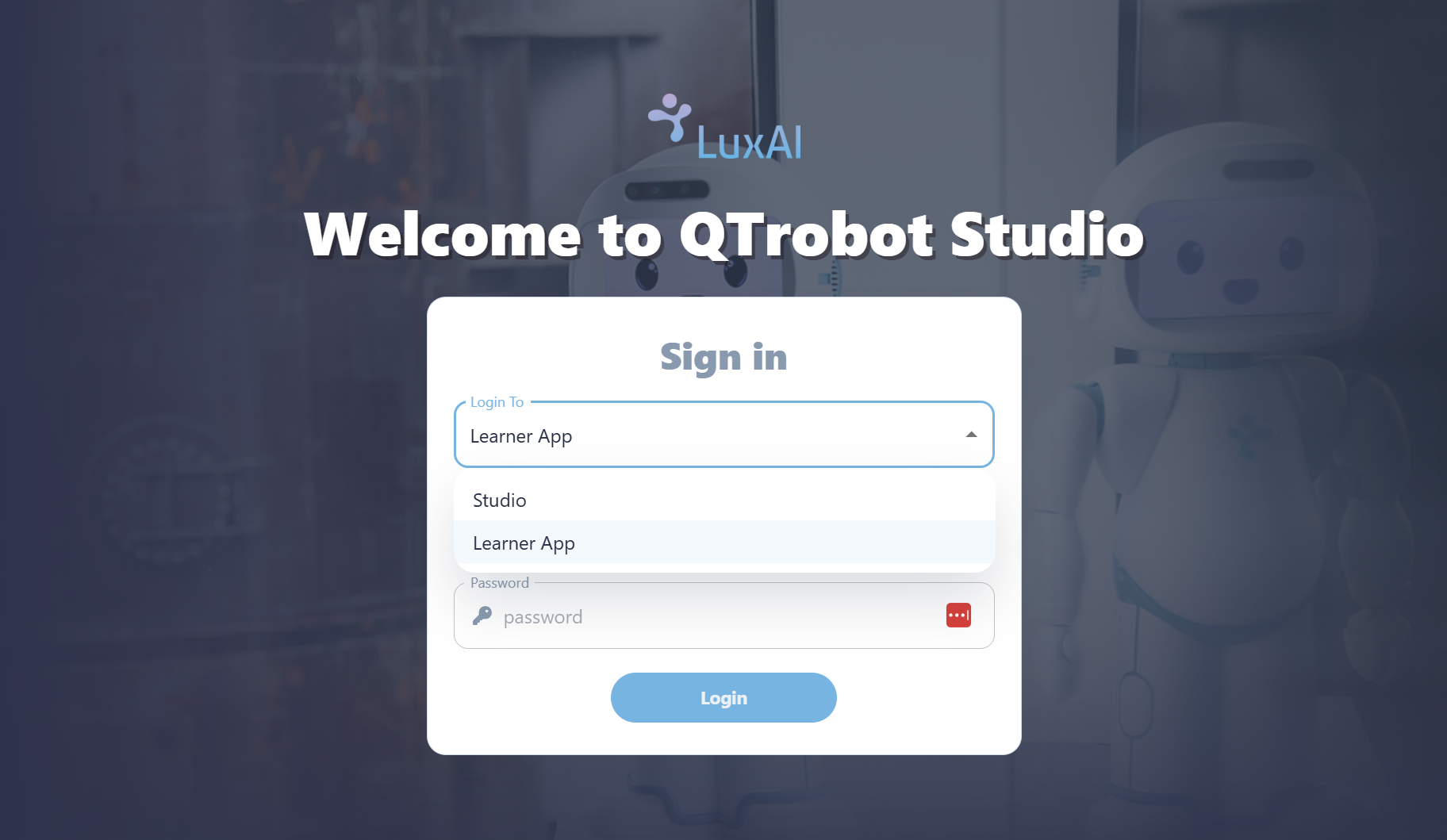
Once logged in, the Learner App shows a waiting screen until a game starts running in Studio:
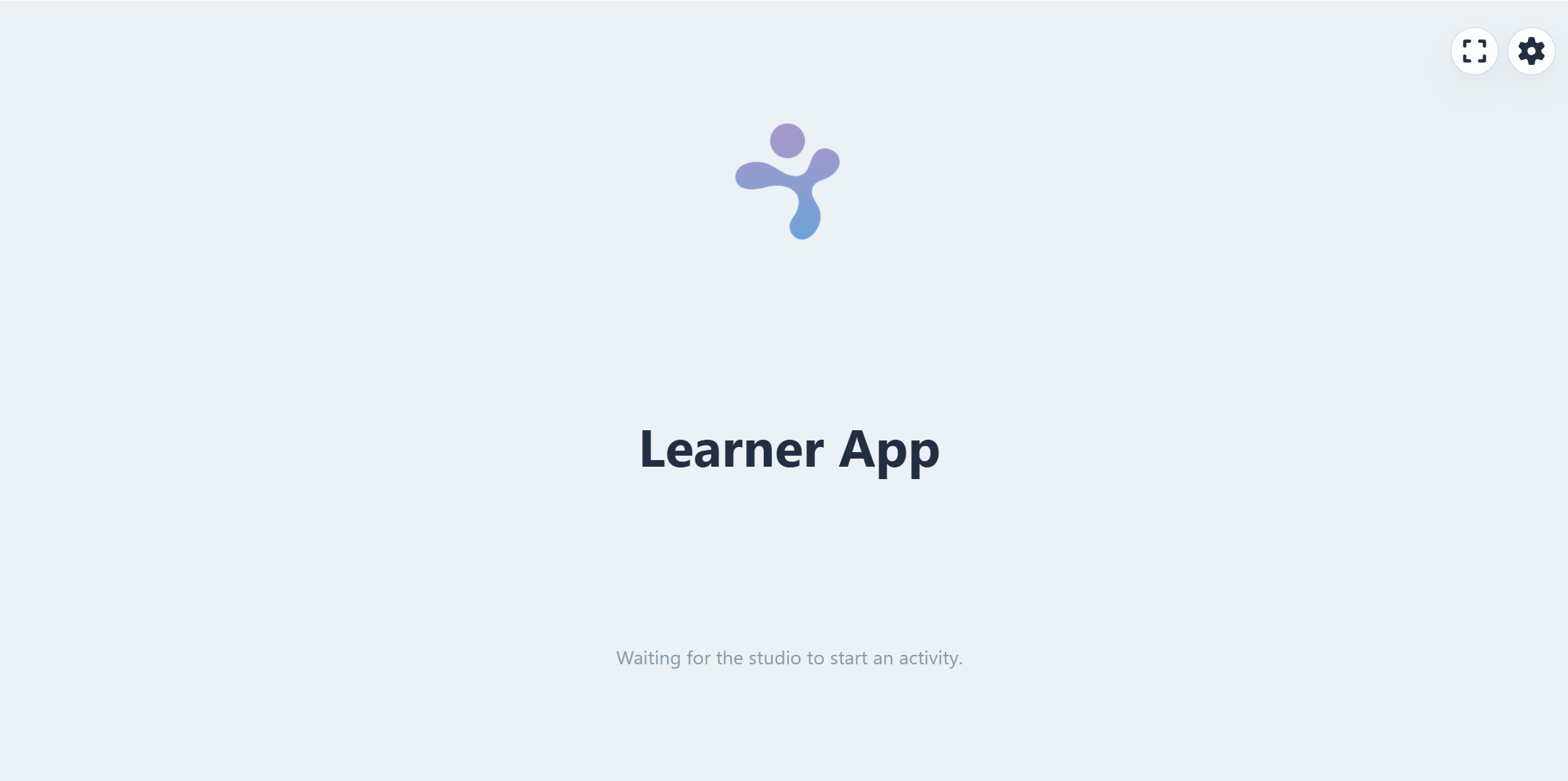
As soon as a game that uses Kid Tablet blocks is running, images and interactive elements appear automatically on the Learner App screen — no further setup is needed.
Uploading images
Before using an image in a game, upload it to Studio:
- Click Images in the Studio top menu.
- Create a folder — this name becomes the Base path for images in your Start Block.
- Upload your image files into that folder.
In your Start Block, set Base path for images to the folder name you just created.
Kid Tablet blocks
Blocks from the Kid Tablet category control what appears on the Learner App screen:
| Block | What it does |
|---|---|
| Unclickable Images Block | Displays one or more images on the Learner App that the learner cannot interact with |
| Clickable Images Block | Displays images the learner can tap; the tap result feeds into the connected Select Block |
| Image and Choice Block | Shows a reference image alongside one or more clickable choice images |
Example: a sorting game
The example below shows a food-sorting game. QTrobot introduces the task, then shows images on the Learner App and waits for the learner to tap one. The operator selects the appropriate path based on what the learner tapped:
In the Start Block, Base path for images is set to images-game — the folder you uploaded your image files into. Each image name in the Kid Tablet blocks refers to a file inside that folder.
Next steps
Continue with Custom audio to learn how to upload and play your own audio files in a game.