Recording and using gestures
This tutorial shows how to use pre-recorded gestures in a game and how to record your own custom gestures directly from QTrobot Studio.
Prerequisites
Your first game — you know how to create a game, add blocks, and run it.
Using built-in gestures
QTrobot comes with a library of pre-recorded gestures. In the Studio left panel, expand the Gestures category to browse them — they are organized into folders such as QT, QT/Dance, QT/emotions, QT/imitation, and QT/Pretend-p.
To use a gesture, drag a gesture entry from the Gestures panel into the gesture slot of any Show Says Act or Show Plays Act block. QTrobot plays the gesture while it speaks or plays audio.
Recording a custom gesture
QTrobot Studio has a built-in gesture recorder. To open it:
- Click Tools in the top menu.
- Select Record gesture.
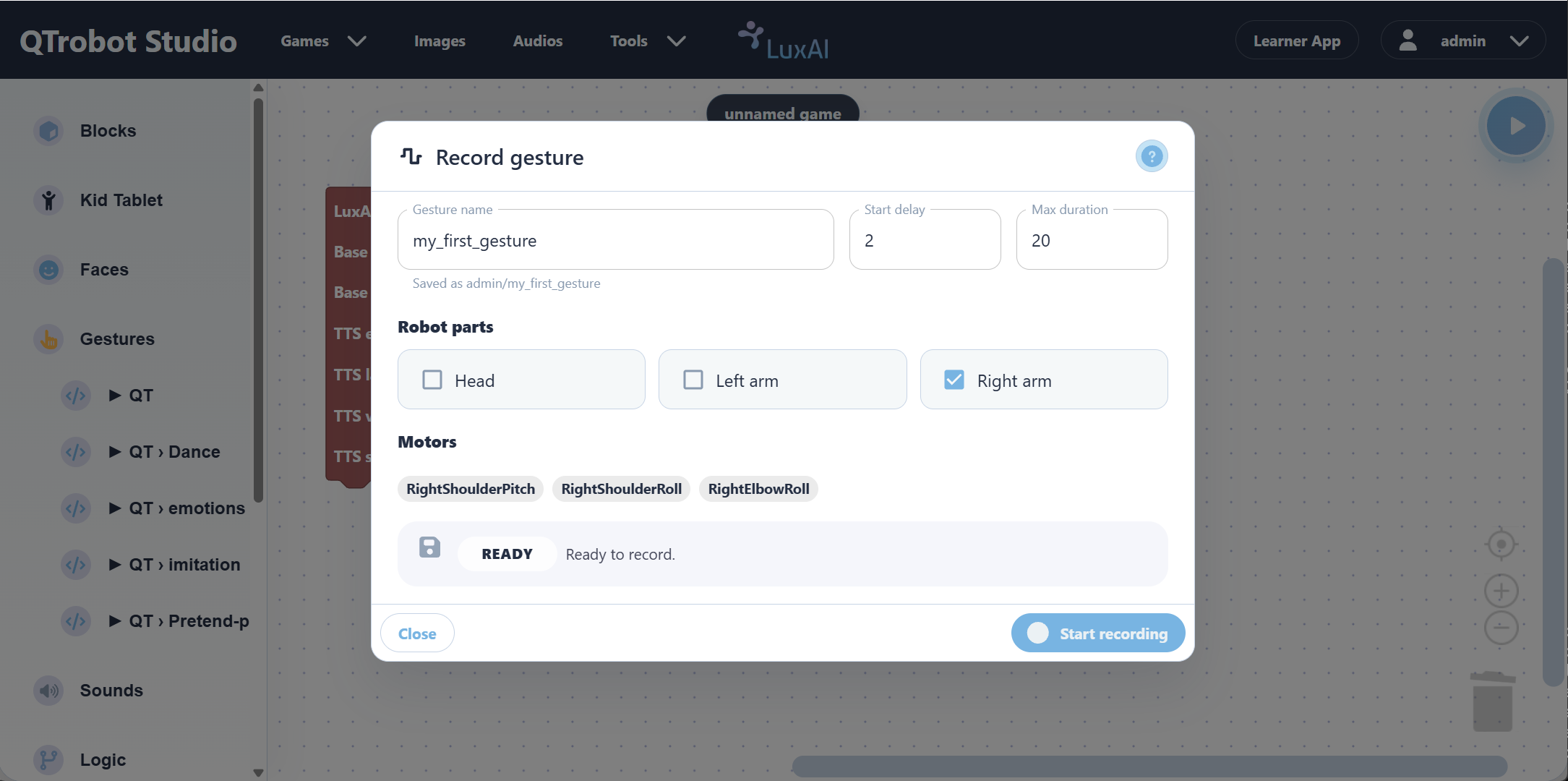
Recorder fields
| Field | Description |
|---|---|
| Gesture name | The name your gesture is saved under (e.g. my_first_gesture). It is saved under your account namespace, shown below the field as admin/my_first_gesture. |
| Start delay | Seconds to wait after pressing "Start recording" before capture begins — gives you time to position yourself and the robot. |
| Max duration | Maximum recording length in seconds. Recording stops automatically at this limit even if you do not stop it manually. |
| Robot parts | Select which body parts to record: Head, Left arm, Right arm. Only the checked parts are captured; the motors for those parts are shown below the checkboxes. |
Recording steps
- Fill in a gesture name, set a start delay (2 seconds is a good default) and a max duration.
- Check the robot parts you want to record.
- Click Start recording. The selected motors release torque so you can move them freely by hand.
- After the delay counts down, move the arm or head slowly and smoothly to the positions you want to capture.
- Click Stop (the button changes during recording) or wait for the max duration to end.
- The gesture is saved automatically and appears in the Gestures panel on the left under your account folder, ready to drag into any block.
- Move slowly and smoothly; fast jerky movements do not reproduce well on playback.
- Avoid letting robot parts touch each other or the robot's body during recording.
- Use the Start delay so you have time to get in position before capture begins.
- Record one arm at a time for more predictable results.
Next steps
Continue with Account management to learn how to manage Studio users, or see the Blocks Reference for a full listing of available blocks.