Account management
QTrobot Studio supports multiple user accounts. Each user has their own workspace — games, uploaded images, and audio files belong to the user who created them and are not visible to others.
All account data is stored locally on QTPC; nothing is sent to external servers.
Opening Account Settings
Click the admin dropdown in the top-right corner of Studio and select Account Settings.
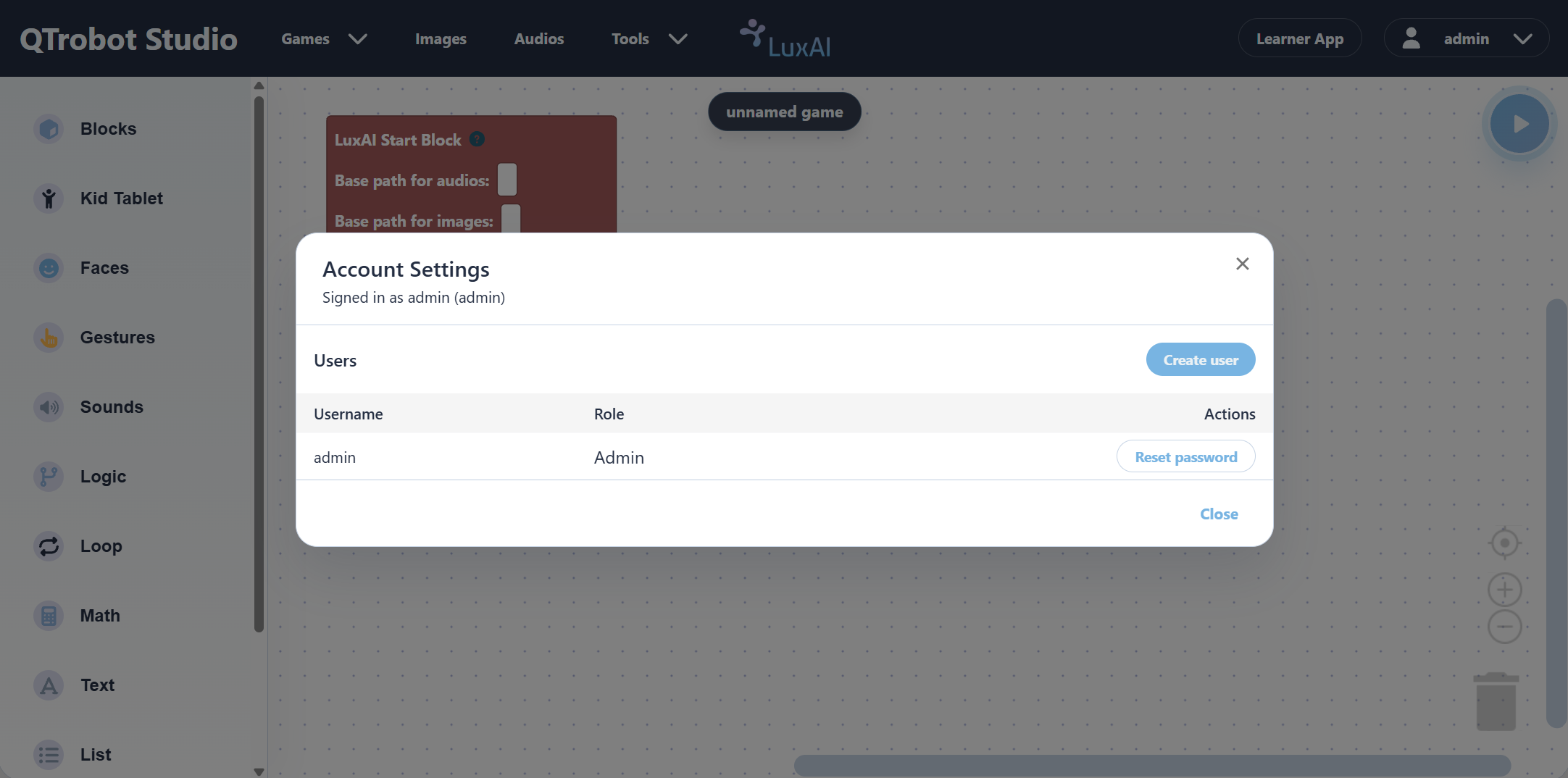
The dialog shows the list of existing users, their roles, and available actions.
Creating a new user
Click Create user in the top-right of the Users table. Enter a username and password for the new account and confirm. The new user can then log in from the login page using their own credentials.
Each user's games, images, and audio files are stored separately under their username. Custom gestures recorded by a user are also saved under their account namespace (e.g. username/gesture_name).
Resetting a password
Click Reset password next to the user whose password you want to change, then set the new password.
Changing the default admin password
Out of the box, the admin username and password are both admin. It is strongly recommended to change the admin password after initial setup. Click Reset password next to the admin user and set a stronger password.
Next steps
You have completed the QTrobot Studio tutorials. See the Blocks Reference for a full listing of all available blocks and their parameters.